
macOS 27: restore BrowserFairy's access to your browser profiles
Browser profiles missing after upgrading to macOS 27? Learn why macOS blocks access and how to restore it in Files & Folders, with screenshots.

After upgrading to macOS 27, BrowserFairy may show Browser Profiles Need Your Attention, or your browser profiles may be missing.
macOS 27 adds extra protection for app data. BrowserFairy needs your permission to read profile information in Chrome, Firefox, Brave, and Edge so it can open links in the right profile. You may need to grant access even if everything worked before the upgrade.
1. Open Files & Folders
Click Open Files & Folders in BrowserFairy's warning.
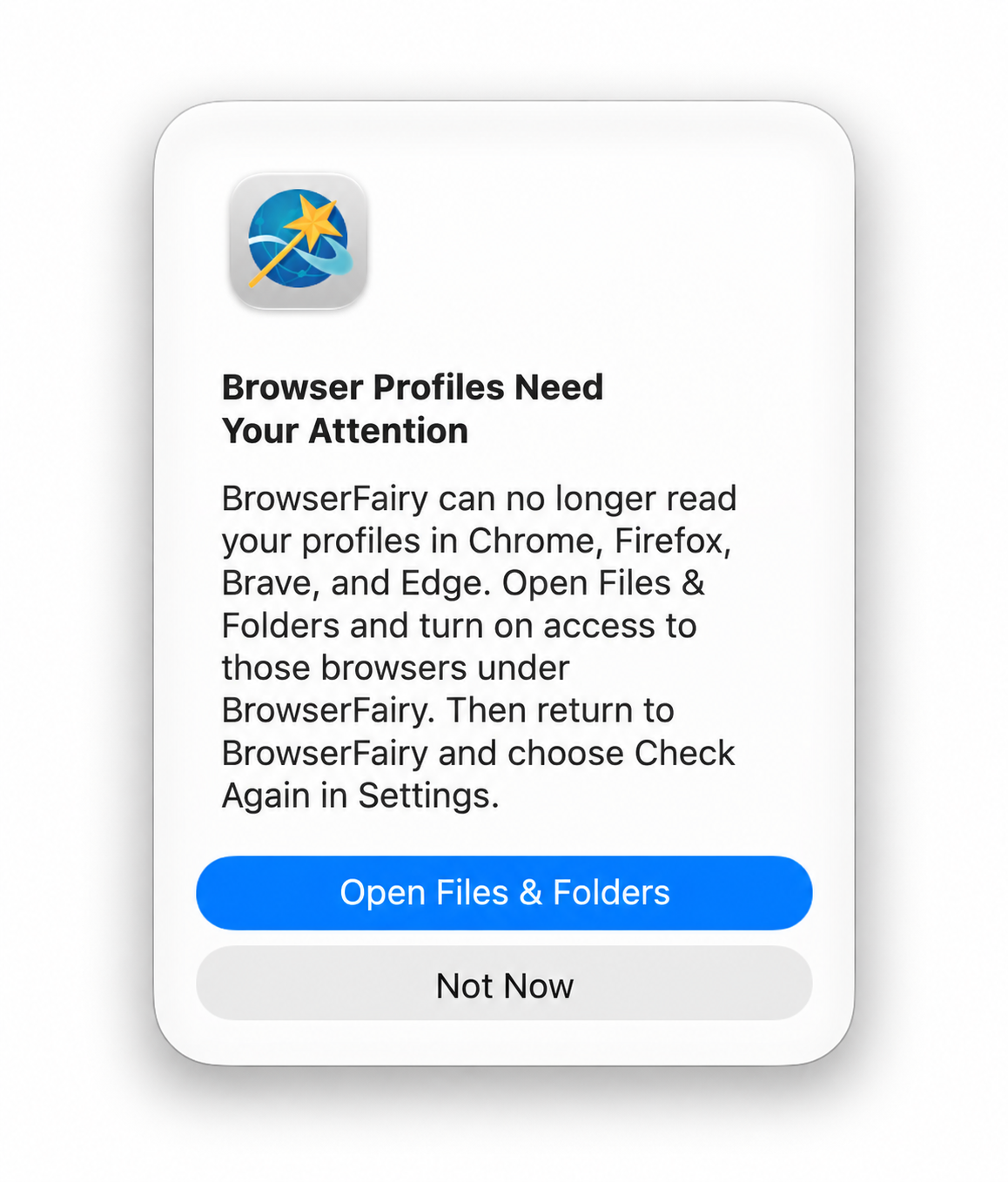
Already dismissed it? Open System Settings → Privacy & Security → Files & Folders.
2. Allow access to your browsers
Find BrowserFairy and click the arrow beside it. Turn on the switches for the browsers whose profiles you use.
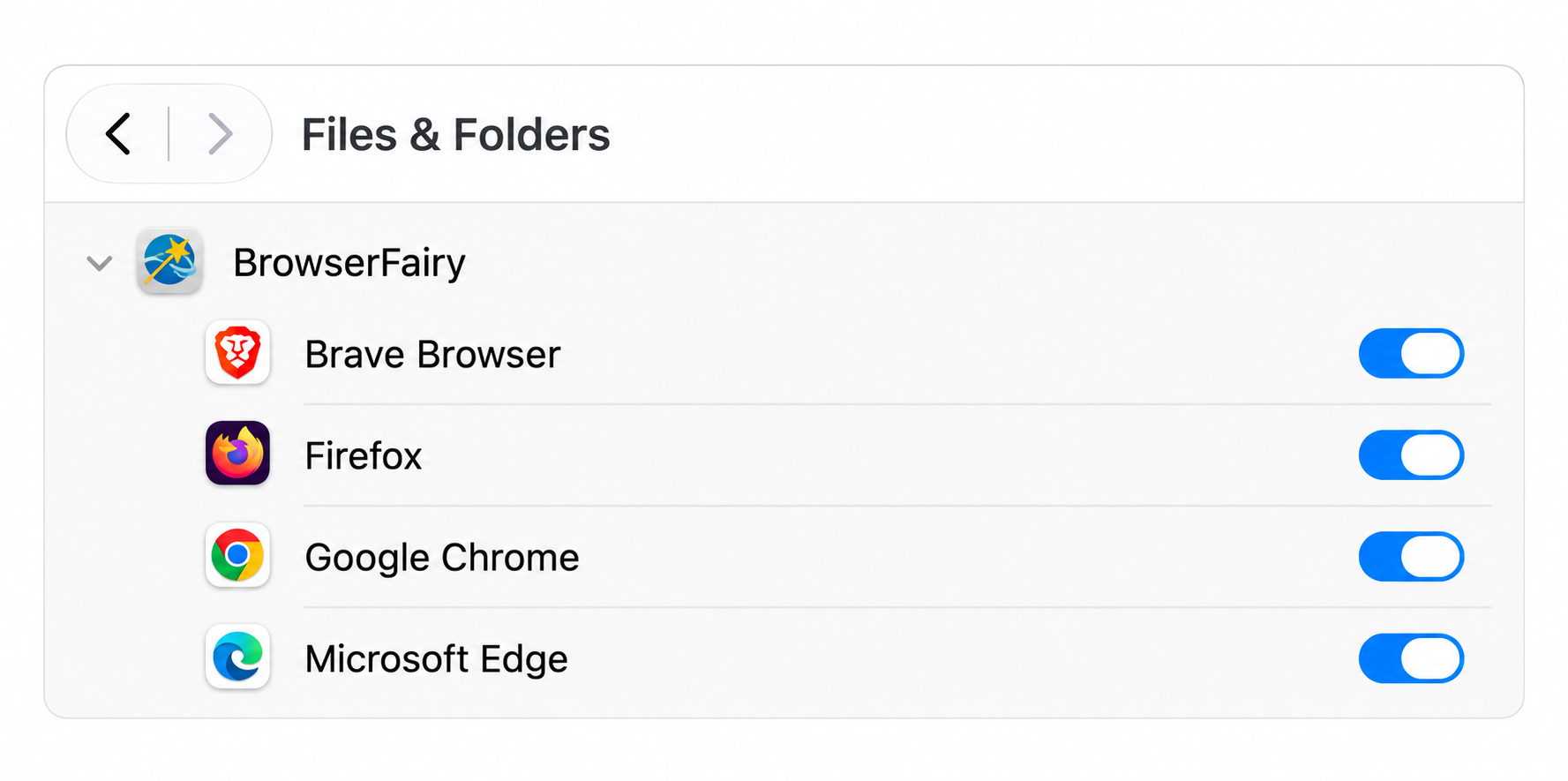
Make sure you're changing the switches under BrowserFairy. Your list may show fewer browsers. Full Disk Access isn't needed for this fix.
3. Check again in BrowserFairy
Return to BrowserFairy → Settings → General → Browser Profiles and click Check Again. Then open the Browser Launcher to check that your profiles are available again.
Still stuck? Quit and reopen BrowserFairy, then try again. If a browser is missing from the permissions list, complete BrowserFairy's profile setup in Settings first. You can also contact support for help.
Screenshots edited for privacy and clarity. Click an image to view it at full size.